
| Hey all, Josh here from the Internet Beacon. We're a Search Engine Optimization firm in Baltimore, Maryland. Today I’d like to share some a helpful Mozilla Firefox addon that I think will make your web surfing experience a little better. For those of you who are used to Microsoft’s Internet Explorer or Apple’s Safari, an add-on does exactly what it sounds like, it adds to your browsing experience. | 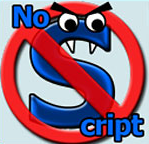 |
Today, I’d like to talk about NoScript. NoScript acts like a switch that allows or disallows Javascript to run on certain pages. This sounds like a great idea for security right off the bat. This is largely true. However, I would caution novice users to do a little research before implementing this add-on. Javascript is running on almost every webpage you visit and with it disabled, they will look very strange at first. Even after you allow certain sites and not others, they may still look strange. This is to be expected.
After following the link above and telling Firefox to install the add-on, your browser will need to be restarted. Go ahead and do this. Once Firefox restarts, you will now see a little blue “S” logo with a red “No” sign over it. This is the NoScript logo. It is informing you that it is now blocking scripts. This is in addition to the message you notice across the bottom about how many scripts it is blocking. Now you can choose which websites to trust to run Javascript in your browser by clicking on it.
The best advice I can give here is to carefully look at the list of sites running scripts through your current site. Obviously you trust the site you visited (if you don’t, stop going there!) so that one is probably safe. Again, that is your call. I can’t say for sure that certain sites are 100% safe and others aren’t.
Once you have set up the filters the way you want, try out a couple of sites. Make sure that things like logging in still work after you've blocked some sites. If they don't, you may have to just allow all scripts to run on that page for the time being. This is also an option on the menu.
That's all for now! I encourage you to check out NoScript at their website, www.NoScript.net, to learn more.
-Josh
Baltimore SEO
Maryland SEO
InternetBeacon

